FusePoint Password Generator Web Part Documentation
Type: Web Part
Overview
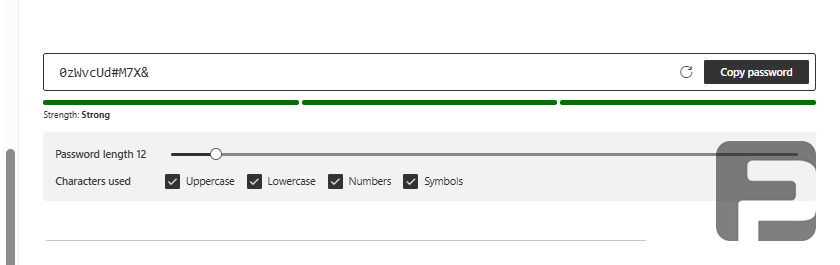
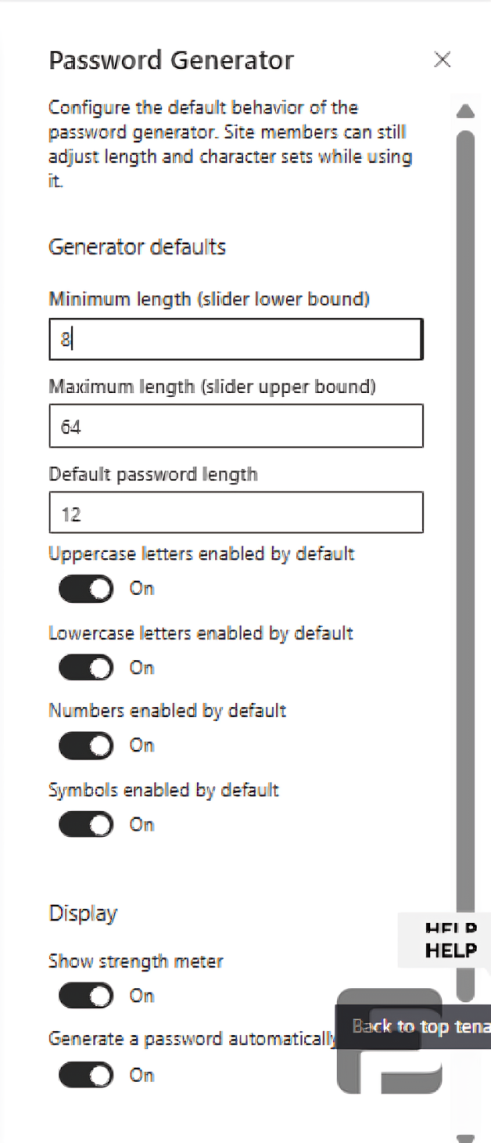
The FusePoint Password Generator web part lets site visitors generate strong, random passwords directly on a SharePoint page. Users can adjust the password length with a slider, choose which character sets to include (uppercase, lowercase, numbers, symbols), view a live strength meter, and copy the generated password to the clipboard with a single click. Administrators can set organization-wide defaults, such as minimum/maximum length, default length, which character sets are enabled by default, and whether a password is generated automatically on load, from the web part's property pane.
Features
Instant Password Generation: Generates a random password as soon as the web part loads (configurable)
Copy to Clipboard: One-click Copy password button for quick reuse
Regenerate: Refresh icon to instantly generate a new password without changing settings
Password Length Slider: Site members can adjust password length within the admin-defined min/max bounds
Character Set Toggles: Enable or disable Uppercase, Lowercase, Numbers, and Symbols
Strength Meter: Visual, color-coded indicator (e.g. Weak / Fair / Strong) that updates as settings change
Configurable Defaults: Admins set the default length, slider min/max bounds, and which character sets are on by default
Display Controls: Show/hide the strength meter and toggle automatic password generation on load
How to Use
Adding the Web Part
Navigate to the SharePoint page where you want the password generator to appear
Click Edit Page and select Add a Web Part
Search for FusePoint Password Generator and add it to the page
Configuring Generator Defaults
Select the web part and open its properties pane
Under Generator defaults, set the Minimum length and Maximum length (the slider's lower and upper bounds)
Set the Default password length (must fall within the min/max bounds)
Toggle Uppercase letters, Lowercase letters, Numbers, and Symbols on or off by default
Under Display, toggle Show strength meter and Generate a password automatically as needed
Save and publish the page
End-User Interaction
Adjust the Password length slider (bounded by the admin-configured min/max)
Check or uncheck Uppercase, Lowercase, Numbers, and Symbols to control which characters are used
Review the Strength indicator below the password field
Click the refresh icon to generate a new password, or Copy password to copy it to the clipboard
Customization Options
Length Bounds: Restrict the slider's usable range via Minimum length and Maximum length
Default Length: Set the password length shown when the web part first loads
Default Character Sets: Choose which of uppercase, lowercase, numbers, and symbols are enabled by default
Strength Meter Visibility: Show or hide the strength meter entirely
Auto-Generate on Load: Control whether a password is generated automatically when the page loads, or only on user action
Notes
Minimum length vs. Default length: The Default password length should stay within the Minimum length / Maximum length bounds configured in the property pane; site members can still move the slider within those bounds.
At least one character set required: Leaving all of Uppercase, Lowercase, Numbers, and Symbols disabled will prevent a valid password from being generated, so enable at least one.
Client-side generation: Passwords are generated locally in the browser and are not stored or transmitted, so refreshing or leaving the page discards the current password.
Benefits
Self-Service Security: Lets employees create strong, unique passwords without a separate tool
Consistent Policy Guidance: Admin-configured min/max length and default character sets help nudge users toward organizational password standards
Fast and Convenient: Generate and copy a password in a single click, right from the intranet page
No External Dependencies: Runs entirely within SharePoint, with no third-party password tools required
Conclusion
The FusePoint Password Generator web part brings quick, secure password creation to any SharePoint page. With admin-configurable defaults and an easy-to-use interface for end users, it's a convenient addition to IT self-service portals, onboarding pages, and security awareness sites.
Try FusePoint for Free!
No credit card required.
FusePoint
The perfect addition to your SharePoint environments.