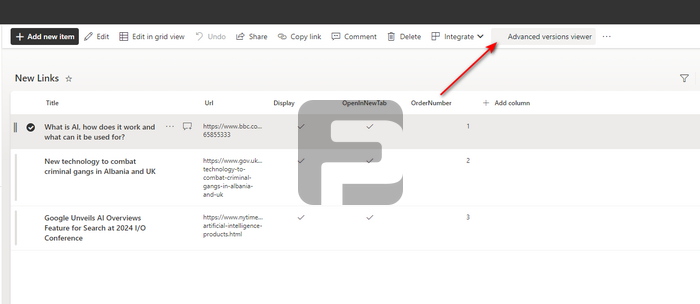
The FusePoint Advanced Versions Viewer extension helps users compare how a selected SharePoint list item changed over time.
When a user selects an item and opens the command, a popup displays fields as rows and versions as columns so changes can be reviewed in one place.
Key Capabilities
Version-by-version comparison: View item changes across multiple versions in a side-by-side table.
Current value reference: Keep the latest value visible while reviewing previous versions.
Per-list visibility control: Enable the extension only where needed.
Tenant-wide or site collection scope: Apply configuration globally or to the current site collection.
Horizontal scrolling support: Handles large version histories and many fields.
Enable and Configure
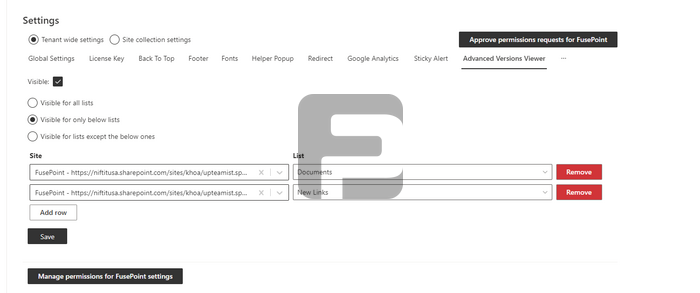
Open FusePoint Settings.
Choose the scope at the top:
Tenant wide settings
Site collection settings
Open the Advanced Versions Viewer tab.
Turn Visible on.
Choose one visibility mode:
Visible for all lists
Visible for only below lists
Visible for lists except the below ones
If using a filtered mode, manage rows in the table:
Select a Site
Select a List
Use Add row or Remove
Click Save.
How End Users Access It
Go to a configured SharePoint list or document library.
Select one item.
Open the item menu (...) and click Advanced versions viewer.
Review the popup table:
Rows = fields/columns
Columns = current value and historical versions
Scroll horizontally when needed to compare additional versions.
Click Close to exit.
Notes
The extension is intended for single-item comparison.
If version history is limited, fewer version columns are shown.
For best results, ensure versioning is enabled on the target list/library.
Large items and long histories may require horizontal scrolling to review all data.
Try FusePoint for Free!
No credit card required.
FusePoint
The perfect addition to your SharePoint environments.